MCP servers
Add outside services as MCP servers: install one, connect an account, then review its tools one by one and decide which run directly and which ask first.
What an MCP server is#
MCP (Model Context Protocol) is an open standard for making a service usable by AI. One MCP server corresponds to one service, such as Linear or Notion, and offers a number of tools, such as "look up an issue" or "create an issue".
Remember one thing: installed does not mean usable. Stevin can only call tools that have been allowed in the review.
Two sources#
On Customize → MCP:
- Managed: servers Stevin manages for you, with a recommended set of tools. Pick one and install it.
- Custom MCP: any remote MCP server reachable over HTTPS, added by its address. Use it for a vendor's official server or one your organization hosts.
From install to usable#
- Install. Choose a managed server and choose Install, or register a custom one (see below). Installing only records the choice: nothing is connected and no tool is permitted yet.
- Connect. Choose Connect and complete authorization, so that Stevin reaches the service as your organization's account. Test connection checks that it works.
- Review the tools. Decide, tool by tool, what Stevin may call.
| Status | Meaning |
|---|---|
| Not installed | Listed, not added to your workspace |
| Awaiting authorization | Installed; no account connected yet |
| Awaiting tool review | Connected; tools not reviewed yet |
| Available | Ready to use |
| Needs review | Its tools changed and must be reviewed again |
| Connection failed | Stevin cannot reach it; reconnect or test the connection |
| Disabled | Switched off by an admin; settings are kept |
Add a custom MCP server#
On the Custom MCP tab, register the server:
| Field | What to enter |
|---|---|
| Identifier | Lowercase letters, digits and hyphens, at most 24 characters. It prefixes every tool name Stevin sees |
| Endpoint URL | The server's HTTPS address |
| Description | Plain words on what this server is for, such as "Company GitHub, the repositories under the acme org". It helps Stevin tell apart several servers of the same kind |
| Authentication | Automatic by default: the server's own answer decides between no credential, a Bearer token (API key) and standard MCP OAuth, where you sign in on the vendor's page. Extra request headers can be added when connecting |
Then choose Register and install. An address you registered but have not installed stays on the Custom tab until you install it or choose Forget.
Review the tools#
After connecting, the server's page lists its tools in three groups:
| Group | Who can trigger them | Before running |
|---|---|---|
| Read | Members whose role has read access | Runs directly once allowed |
| Write | Members whose role has write access | Asks first by default; can be set to Runs directly |
| Delete and irreversible | Members whose role has delete access | Always pauses for approval; cannot be changed |
- Switch each tool on or off under Allowed, or use Allow all and Deny all and then fine-tune. A search box filters long lists.
- Every change saves immediately.
- Stevin neither sees nor uses a tool that is not allowed.
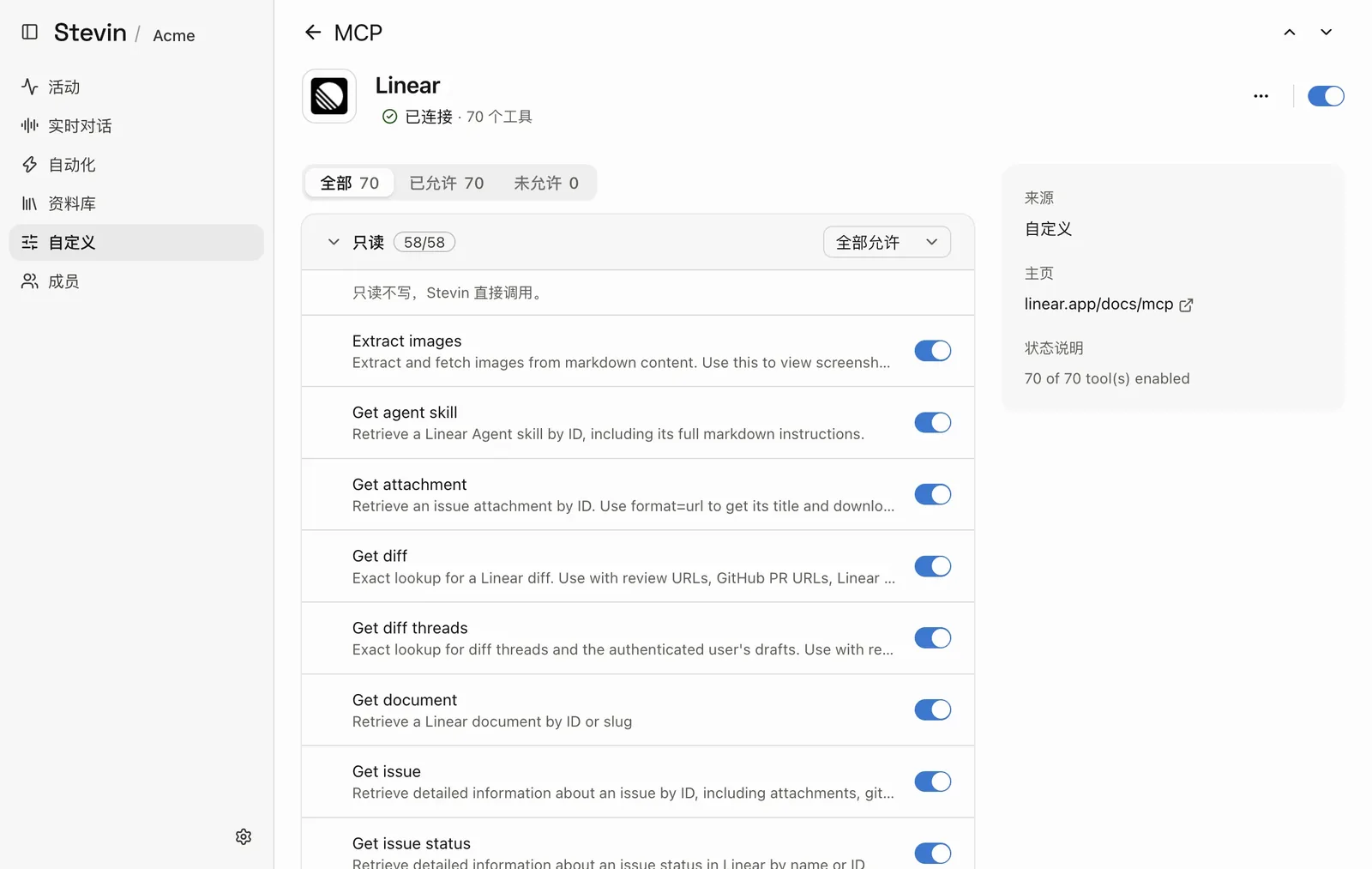
- Connection statusWhether the server is connected, and how many tools it offers.
- Enable or disableSwitches the whole server off without losing its settings.
- All, Allowed, Not allowedFilter the tools by their review state.
- Read-only groupTools that only read. The count shows how many are allowed. Write and delete tools have their own groups below.
- Allow allAllow or deny the whole group at once, then fine-tune.
- One toolIts name, what it does, and its switch. Stevin cannot see a tool that is switched off.
Deciding which tools Stevin may call is its own permission, separate from installing and connecting. By default Admins and the Owner hold both.
When a provider changes its tools#
Stevin can only call a tool with the arguments it had when you reviewed it. A tool that changes, or a new one, comes back for review and is not used until an admin allows it. This prevents a tool nobody has looked at from being used quietly.
Installing from a conversation#
A member can ask Stevin in a conversation to install and connect an MCP server, or to switch on a tool of an installed one. Whether it asks for confirmation first is set per role on the Permissions page. These settings only remove a confirmation; who may install or review at all is still decided by the console permissions.
Disable or uninstall#
- Disable switches a server off without losing its settings. Enable brings it back.
- Uninstall removes it. Stevin loses access to its tools immediately; to use it again, install, connect and review it again.
- A server marked Required by an integration can only be switched off by an admin.
Security advice#
- Add only custom servers you trust. Stevin reads what they return.
- For a new server, allow only the read tools at first, and open up writes after watching it for a while.
- Look through the installed list from time to time and remove what is no longer used.