Integrations
Connect your team's chat tool, GitHub and Stevin's built-in capabilities on the Customize page: what is available, how to connect, and how to disconnect.
What integrations are#
Integrations decide which systems Stevin can see and act in. A system that is not connected can be neither read nor changed.
There are two places to connect things, both on the Customize page:
- The Integrations tab: chat tools, GitHub and a few built-in capabilities. This page.
- The MCP tab: any other outside service, added as an MCP server. See MCP servers.
What you can connect here#
| Integration | What it gives Stevin | Details |
|---|---|---|
| Slack | Receive requests and send results in your Slack workspace | Slack |
| Feishu or Lark | Receive requests and send results in Feishu or Lark, plus Docs, Base, Calendar, Tasks and the knowledge base. Only one of the two can be connected | Feishu and Lark |
| A direct chat with Stevin on your workspace's own WhatsApp number | ||
| GitHub | Read repositories and work with issues and pull requests | GitHub |
| Code execution | Write and run a short Python program over data it already has | Code execution |
| Install packages | Install Python packages into the code sandbox when a program needs one | Code execution |
The complete and current list is the one shown in your console.
Connect an integration#
- Open Customize in the console and stay on the Integrations tab. It is divided into Connected and Available.
- Under Available, choose the integration and choose Connect.
- Complete authorization as the page directs. Some integrations send you to the provider's own authorization page; others ask for app credentials. Secrets you enter are stored on the server and are not shown again.
- The integration moves to Connected. Open it to see its status and settings.
Connecting, disconnecting and configuring integrations needs the matching permission, held by Admins and the Owner by default.
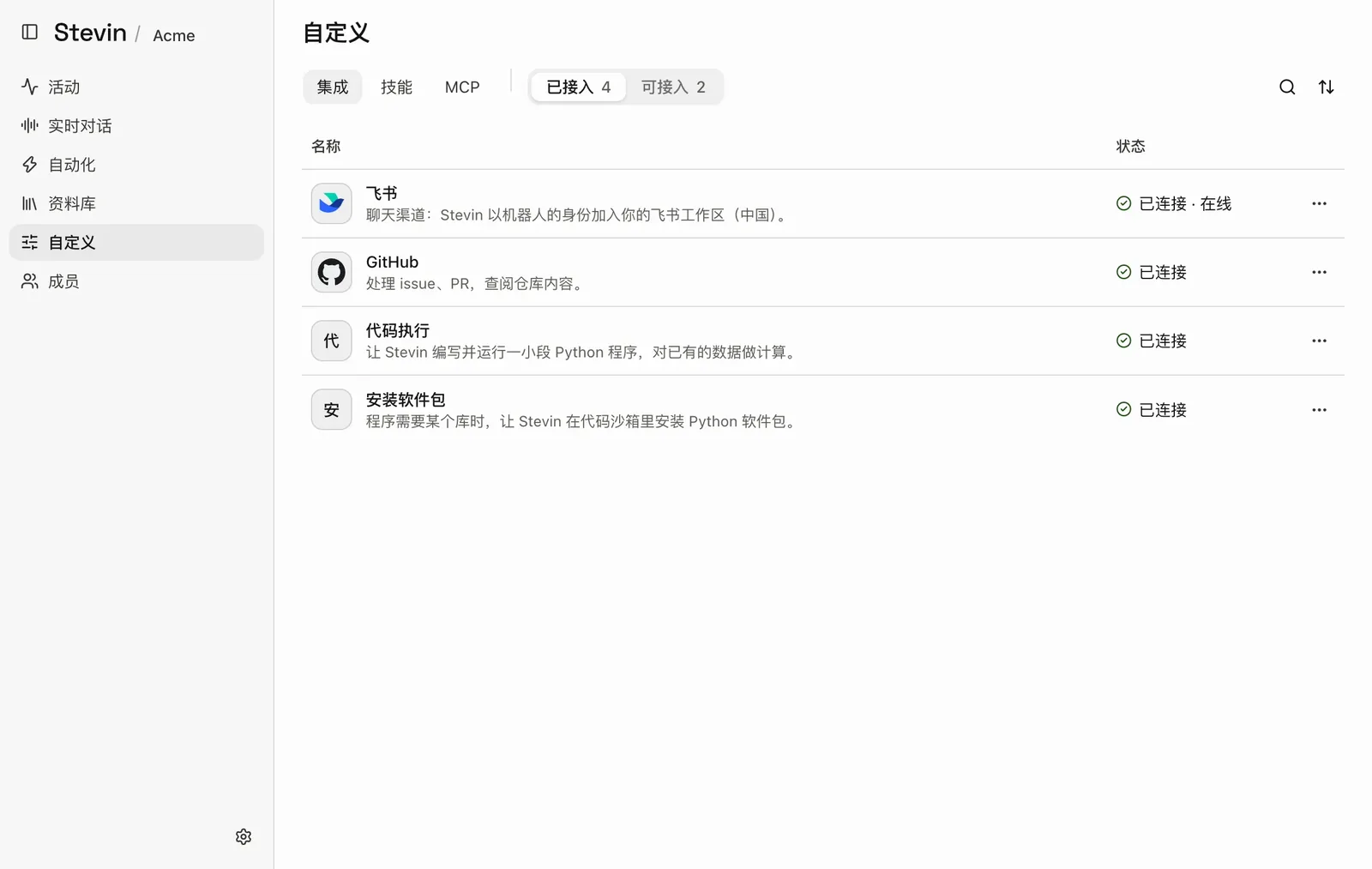
- CustomizeThe page that holds integrations, skills and MCP servers.
- Integrations tabThe first of three tabs. Skills and MCP are next to it.
- Connected and AvailableSwitch between what is already connected and what you can add. The numbers are counts.
- A connected integrationIts name and a one-line description. Select the row to open its settings.
- StatusConnected, or what still needs attention. A chat tool also shows whether it is online.
- More actionsOpen, disconnect and other actions for this integration.
GitHub#
With GitHub connected, Stevin can read repositories and work on issues and pull requests.
- Default repository: when a conversation does not name a repository, Stevin uses this one.
- Automations: a connected GitHub account is what lets an automation start on a GitHub event. The hook is created for you.
Built-in capabilities#
Besides outside tools, the Integrations tab has capabilities that come with Stevin:
- Code execution: lets Stevin write a short program to total, join or rank data it already has, or to produce a file. The program has no network access.
- Install packages: installs a Python library into the sandbox when a program needs one. Admins can list the packages that install without approval.
See Code execution.
Least privilege#
- Connect only the tools you really need.
- When authorizing, grant only the scope that is needed, for example the relevant repositories rather than the whole organization.
- For each automation, select only the MCP servers it needs.
Disconnect an integration#
Open the integration under Connected and choose Disconnect. After that:
- Stevin immediately loses every capability of that integration.
- Automations that depend on it fail, and recover once you reconnect.
When authorization goes wrong#
When Stevin replies that it has no permission, or the outside system refuses, open the integration and check its status. Changes on the other side (for example, an admin revoking the app's permissions) also break it; authorize again to fix it. If the page says statuses could not be checked, that alone does not mean the connections are down: reload and look again.