Live voice
Talk to Stevin in real time from your browser: it listens, works in your tools while you speak, and answers by voice. Sessions are transcribed and recorded.
What Live is#
Live is a voice conversation with Stevin in the browser. You speak, it listens, does the work and answers by voice. You can ask for lookups and actions across your team's tools, or just talk something through. Every session is transcribed and recorded, and kept in the library.
Start a session#
- Open Live in the console and start the session.
- The browser asks to use your microphone. Allow it.
- Stevin greets you first. Then just talk.
- To interrupt while Stevin is speaking, simply start talking.
- Say "hang up" when you are done, or end the session on the page.
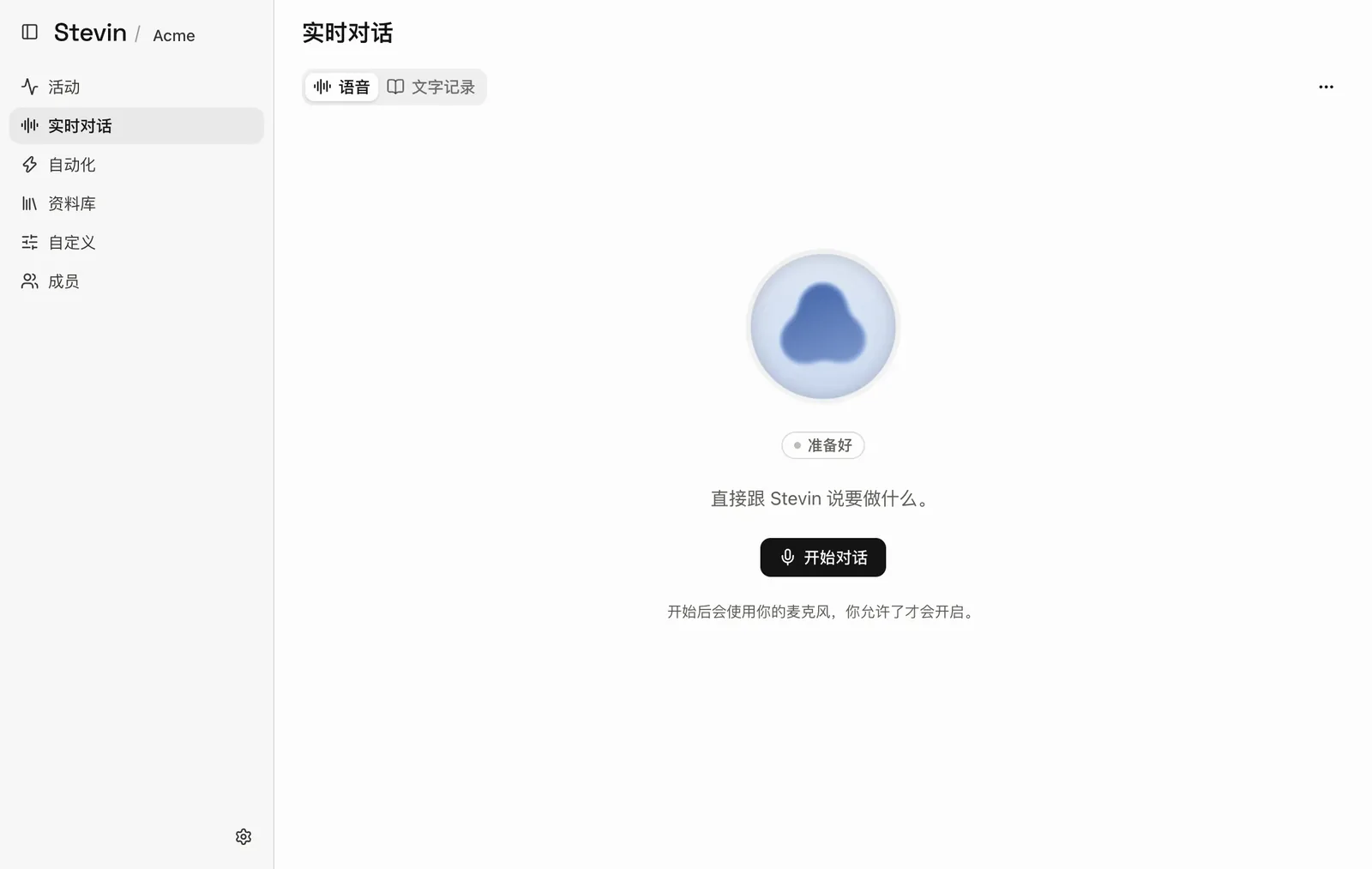
- Live in the sidebarLive is its own page in the console, next to Activity.
- Voice and TranscriptSwitch between the voice view and the written transcript of the session.
- ReadyThe state of the session. It changes as Stevin listens, works and speaks.
- StartOpens the microphone, after you allow it, and connects. Stevin speaks first.
Work you hand over during a session#
Everything you ask for during a session is listed on the page under Tasks on this session, marked as a lookup or an action, with its state:
| State | Meaning |
|---|---|
| Working | Stevin is on it |
| Needs your yes | Waiting for you to confirm. Nothing is done before that |
| Awaiting approval | Paused for approval in Activity in the console |
| Done | Finished |
| Failed | Did not go through. Nothing was done |
| Dropped | You did not confirm, so nothing was done |
| After the call | Still running when the session ended. The result goes to your chat direct message if your identity is linked |
- For items waiting on you, say "yes" or "no", or use Approve and Reject on the page.
- For long jobs, say "run it in the background and send me the result". Stevin keeps working after you hang up and sends the result to your chat.
Sound quality and devices#
- Mute stops Stevin from hearing you for a moment.
- Hi-fi switches the microphone to full-band sound with echo cancellation off. Use it with headphones. On speakers, leave it off, or Stevin hears itself.
- Under Settings → Voice you choose the microphone, whether Hi-fi is on by default, and whether Stevin's voice is lowered the moment you speak. See Your settings.
Use it on your phone#
The Live page shows a QR code under Open on phone. Scan it with your phone camera to open Live in the phone's browser. Sign in the first time. Add the page to your home screen to open it full screen like an app.
To use a normal phone call instead, see Phone.
Problems#
| What you see | What to do |
|---|---|
| "Voice is not configured for this workspace yet" | Ask an admin to enable voice |
| Microphone access was refused, or no microphone is available | Allow the microphone in the browser's site settings and check that a device is connected |
| The session was refused | Sign in again and retry |
| The connection dropped | Check your network and start again |